Sent to you by GADET via Google Reader:

I've been waiting for a dedicated eBook reader with a backlit color display since the early days of the original Sony Reader. During that wait, I found myself using my current smartphone as an eBook reader due to the fact that it is always with me and has a color display. The Barnes & Noble NOOKcolor has been on the market for a little over 2 months and I only recently decided to buy one. Let's see if this new touchscreen color reader will become my new favorite eBook reading device.
Note: Most of the images in this review can be clicked for a larger sized view.
Hardware Specs
Processor: TI OMAP 3621 CPU clocked at 800MHz
Memory: 512MB of RAM, 8GB built in Flash memory (capacity for up to 6000 eBooks)
Memory Expansion: up to 32GB with microSD™ memory card
Connectivity: Wi-Fi (802.11 b/g/n)
Supported document types:
- EPUB (including Non or Adobe DRM)
- Other documents: XLS, DOC, PPT, PPS, TXT, DOCM, XLSM, PPTM, PPSX, PPSM, DOCX, XLX, PPTX
- Graphics: JPG, GIF, PNG, BMP
- Audio: MP3, AAC
- Video: MP4
Display: 7 inch color touchscreen 1024 x 600 resolution, 169 pixels per inch (PPI) with a 178-degree viewing angle
Dimensions: 8.1 x 5.0 x 0.48 inches
Weight: 15.8 oz.

Package Contents
NOOKcolor eReader
AC adapter with USB sync / charge cable
Quick Start Guide
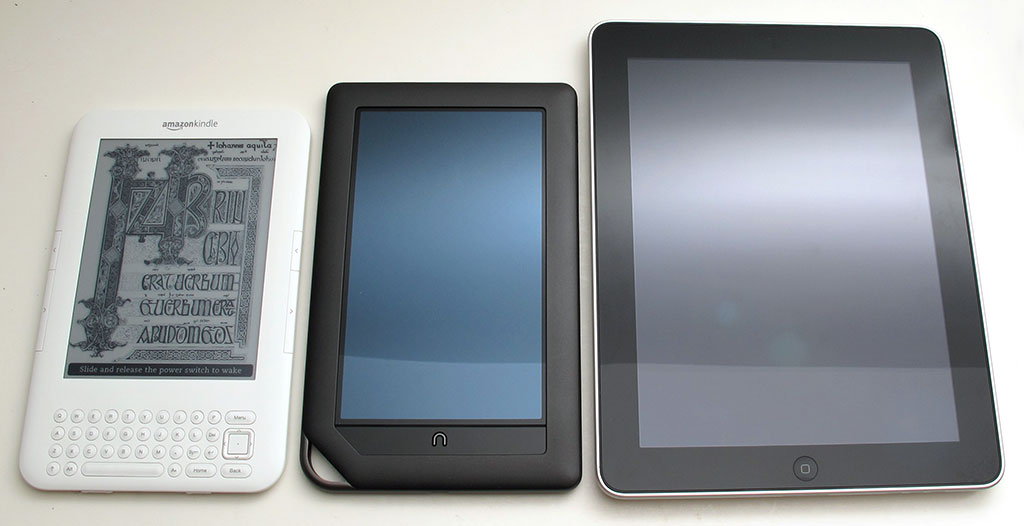
Let's start out by comparing the NOOKcolor to other popular devices to give you an idea of its size. In the image above, you can see the NOOKcolor between the Amazon Kindle 3 on the left and the Apple iPad on the right.
Physical Design
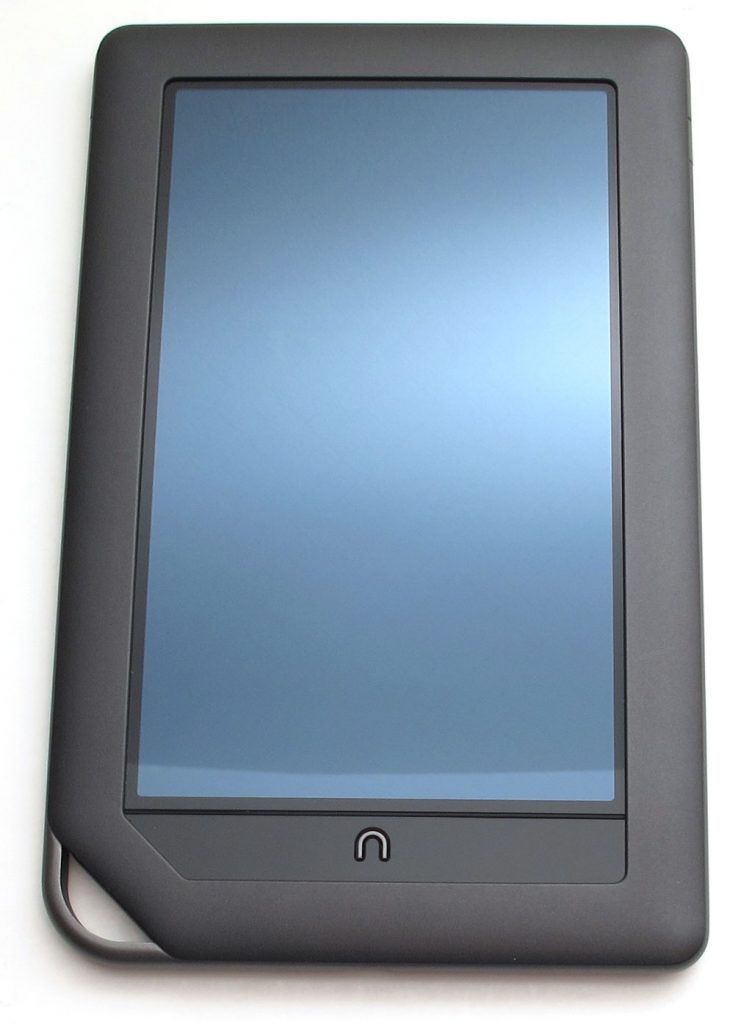
With its charcoal colored case, it's sexier than the original Nook. It's heavy in hand which might make you think that the case is metal, but it's actually plastic. Even though it's constructed of plastic, this reader has a very good heft to it and doesn't feel cheap. It might even be considered a bit too hefty at very close to 1 lb. It may be tiring for some people to hold for long periods of time while reading.
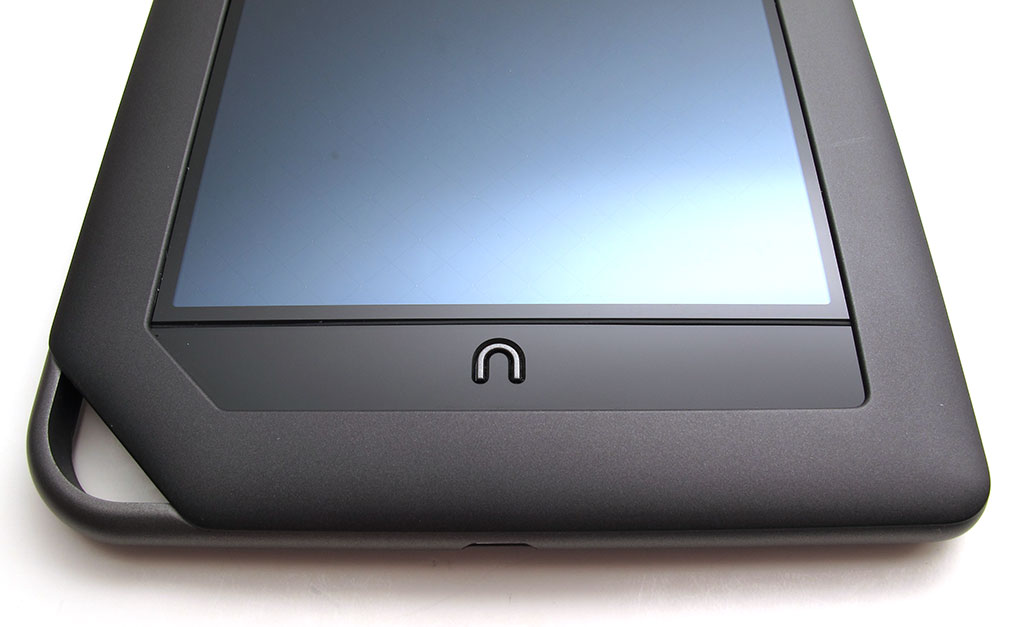
Gone is the narrow touch panel that we had on the original Nook. In its place is the only physical button on the face of the reader. It's the "n" shaped Home button. This button wakes the device from sleep, as well as always taking you back to the home screen from where ever you are.
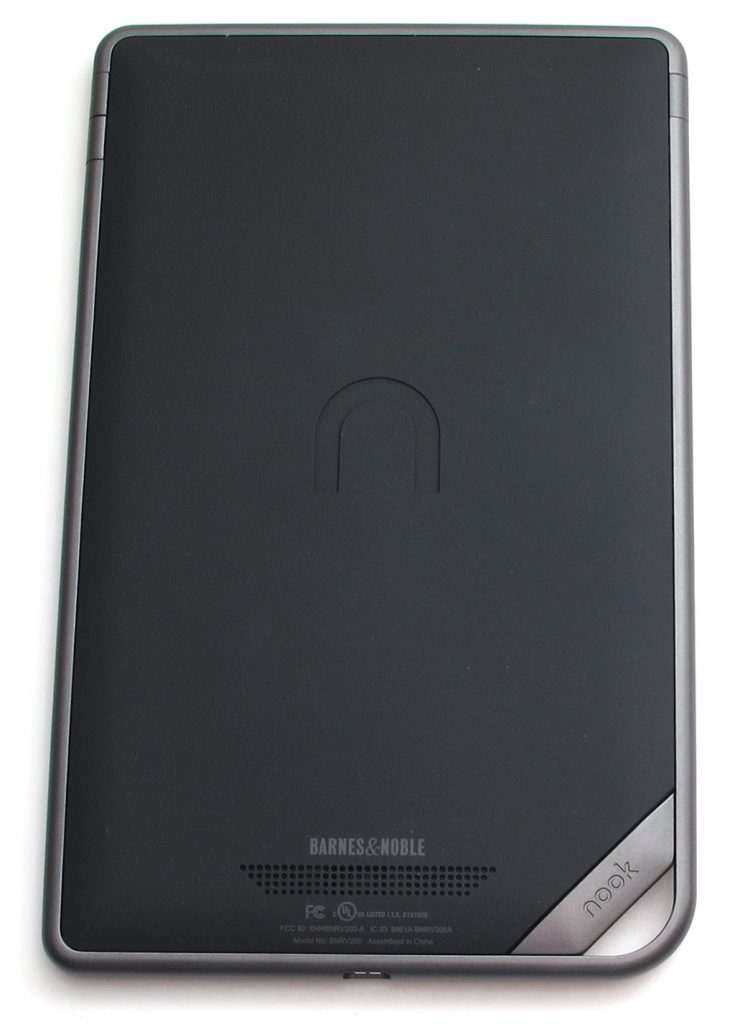
The back of the NOOKcolor is made of soft plastic, which gives it some extra grip. The bottom corner is open like a loop. This loop isn't really useful for anything. It's more of a design element than anything else.
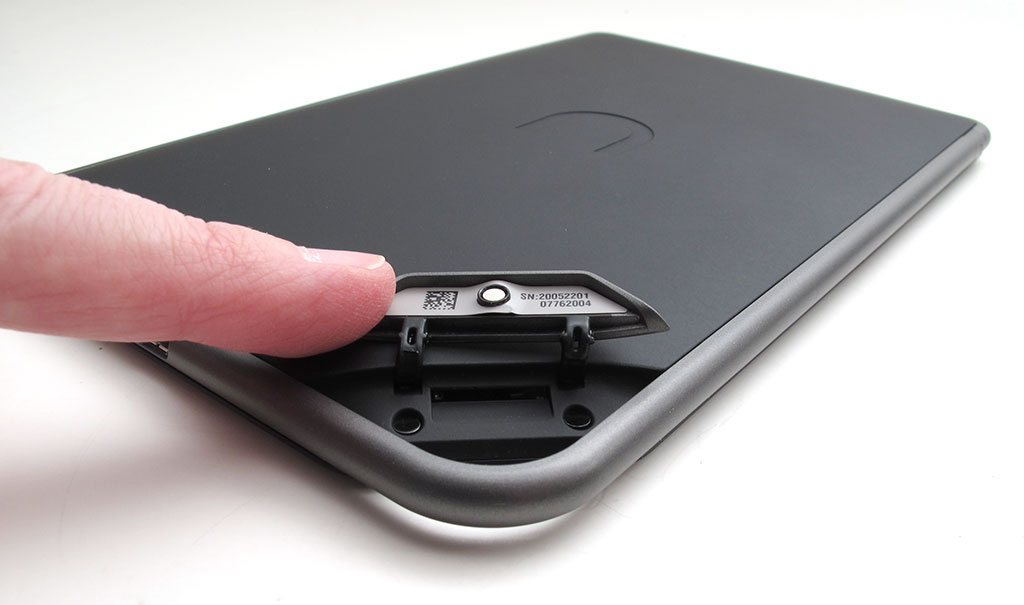
Next to that loop is a hidden slot for a microSD card (not included), that you can use to expand the memory of your reader.

On the left side is the power button.
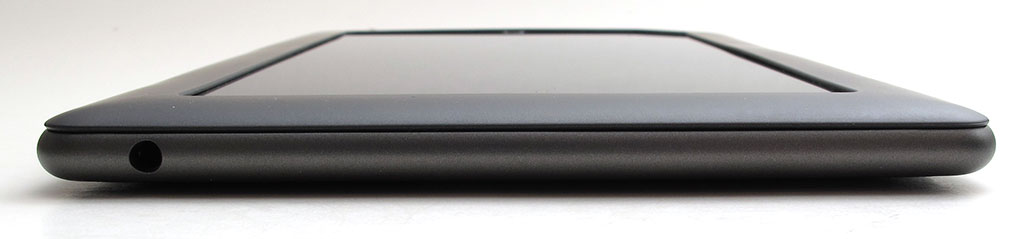
On the top edge is a standard sized earphone jack.

The right side has volume up/down buttons.
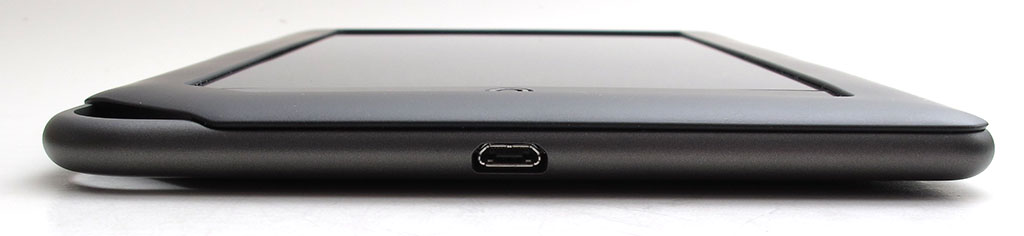
And last but not least, you'll find the micro USB connector on the bottom edge of the device.

When you're charging the Nook, there is an LED at the end of the USB cable that glows amber while the device is charging and will then turn green when finished.
Connecting the USB cable to your computer will enable you to transfer files, but be aware that you can't charge the Nook through a USB port on your computer. It has to be charged with the included AC adapter.
On the subject of power, I am happy to report that the NOOKcolor has decent battery life. I didn't do any special tests to keep track of how many hours of reading I could get per charge, but I've noticed that I can read for an hour or more a day, for several days on one charge.
User Interface
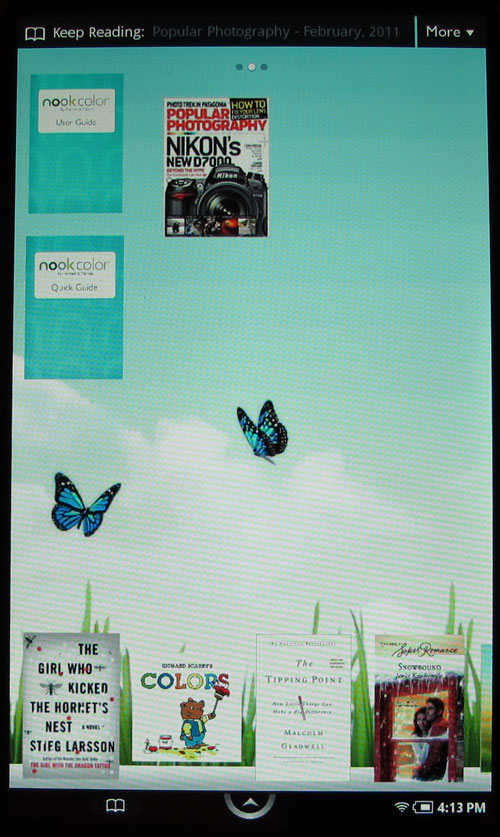
The home screen is a landing page that shows your latest books, magazines and newspapers. You can arrange the books by dragging them from the bottom of the screen to the top, where you have 3 pages that you can swipe through. You can also customize the background image by uploading your own wallpapers to the reader (there are a few default ones to choose from too).
In the bottom right corner, you will always see your WiFi and battery status, along with a clock.

If you press the arrow in the bottom center of the display, a Quick Nav Bar will popup giving you fast access to the main features of the reader.
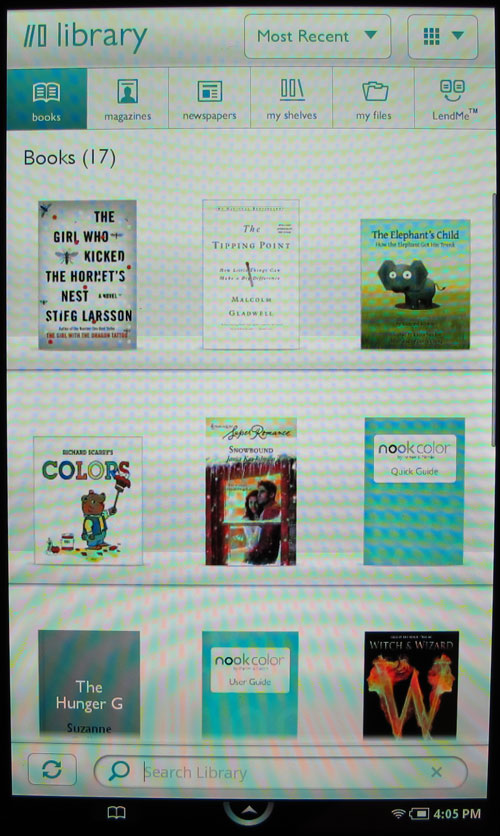
The library is probably a good place to start. It gives you a view of all the books that are stored on the device. This list can be viewed as shown above, or as a long list with smaller thumbnails. The list can also be viewed according to the last date you accessed the books. If you have a lot of books on your device, you can use the search feature at the bottom of the display to search on a word in the title or author's name.
There's also the ability to create named shelves where you can arrange your books. Books can be added to more than one shelf.

Tapping the thumbnail of a book will open it for reading. You can customize the way the book looks as there are 6 text sizes, 6 font types, 6 background colors, 3 line space options, and 3 margin styles.
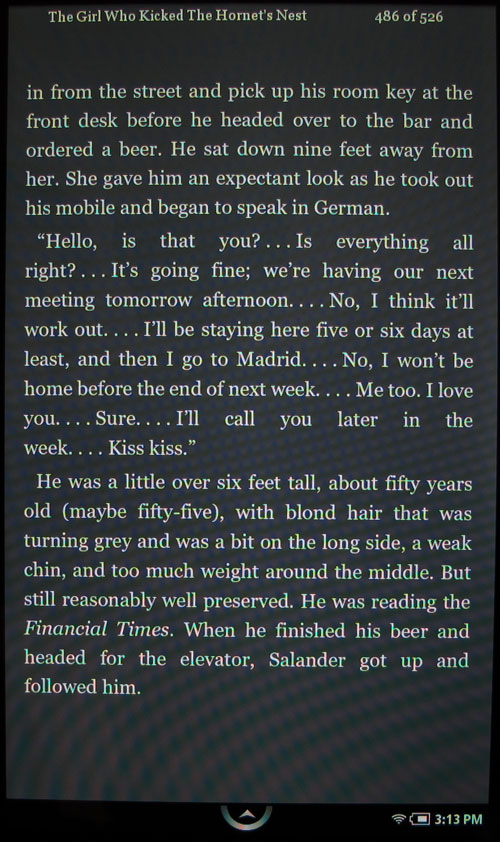
I like to use the Night theme, which gives a black background with white letters.
Turning pages is done by either tapping the right margin to go forward one page, or by tapping the left margin to go back one page. You can also swipe your finger right or left with the same results. I typically hold the Nook in my right hand and use my thumb to tap the right margin to turn the page. I've found that about 5 times out of 10, I'll have to press twice to turn the page. I wish the screen was a little bit more sensitive to touch.
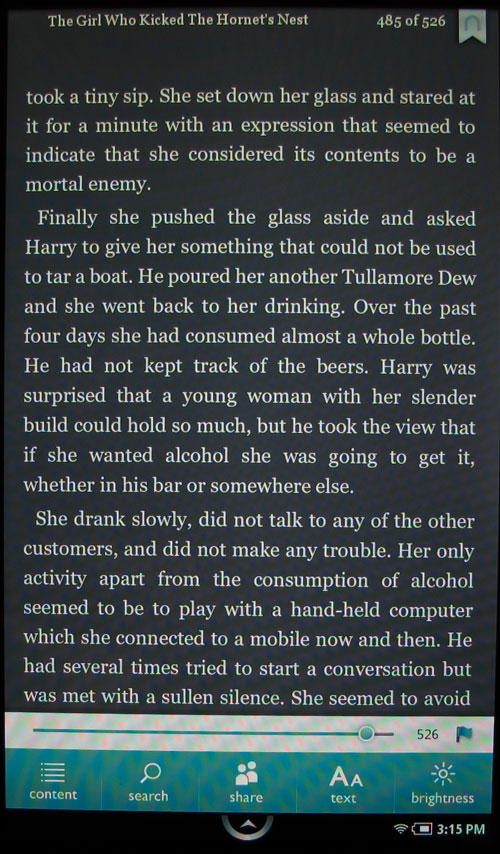
Tapping in the center of the display will bring up a toolbar at the bottom of the screen, which will show your progress in the book, with a drag button to move around quickly. There are also 5 tools that you can access. In addition to the search tool, font picker and brightness tools, there is also a share tool and content tool. The share tool will let you rate, review and recommend the book, along with sharing your progress through Twitter and or Facebook. The content tool shows the table of contents with chapter names that can be tapped to quickly move to that chapter. The content view will also let you view any notes and highlights that you've added, as well as bookmarks.
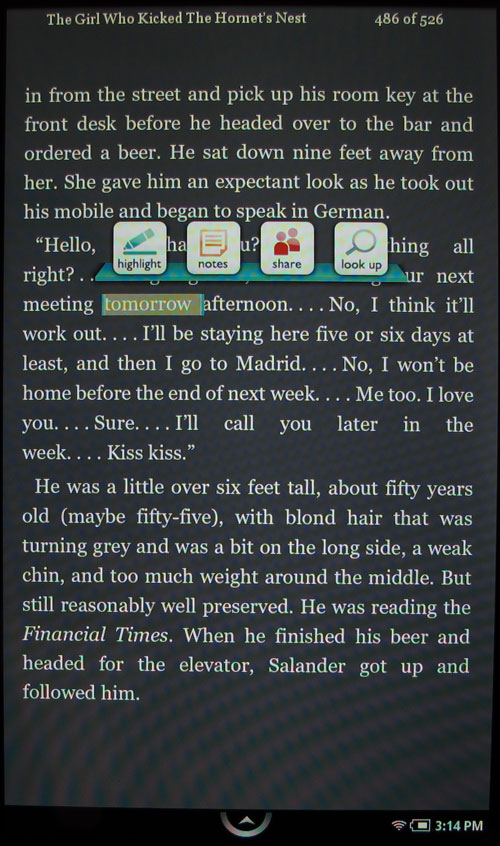
Looking up words, adding highlights and notes is really pretty simple. Just tap and hold on a word to bring up the toolbar.

From there you can tap the magnifying glass to see the definition of the highlighted word. If you want even more info, you can tap the Wikipedia or Google buttons. Bringing up the definition is pretty much instantaneous and doesn't require a WiFi connection. Getting more info through Wikipedia and Google does require you to be connected to WiFi.
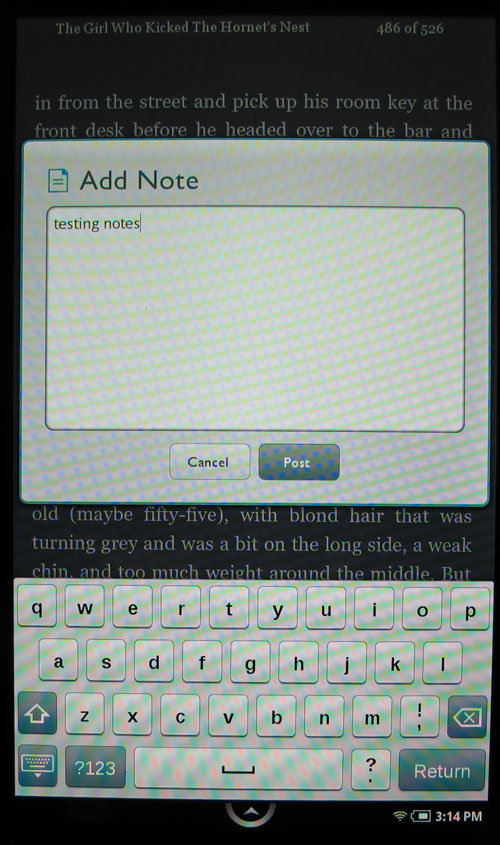
To add a note, you do the same thing. Tap and hold on a word and then drag the highlight to include as many words and sentences as you like. Then click the Notes tool and type in your note using the on-screen keyboard.
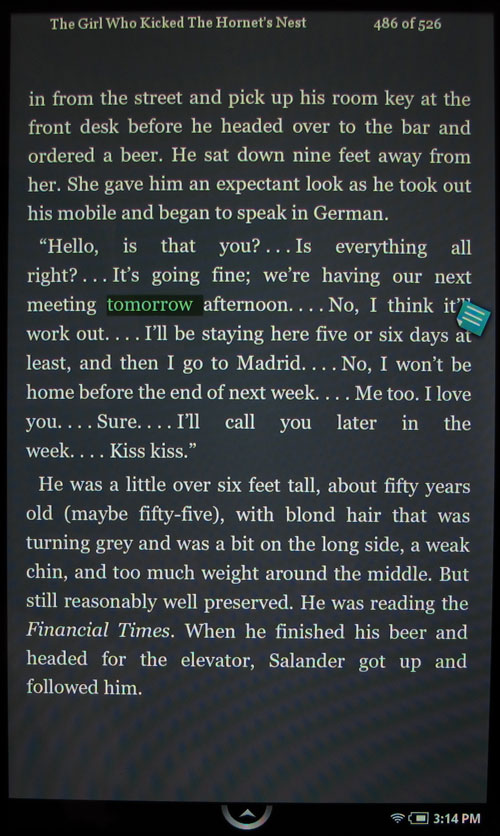
Once your note is finished, the word or phrase will be highlighted in the text and a little flag will appear in the margin. Tapping the flag will let you view and edit the note.
If you're the type of person that uses a search tool a lot, you'll be disappointed to learn that the built in search tool won't search your annotations. Searching within a book is pretty basic, but when you're not viewing a book, and use the search tool, it won't search your library. This appears to be a future feature as there is a greyed out check box in the settings to allow library, magazine and newspapers as searchable items. No idea when the feature will be available though.

In addition to .ePub, .TXT and other formats, the NOOKcolor supports .PDF files. Of course the 7″ display is a bit small to read a typical 8×10 inch document.
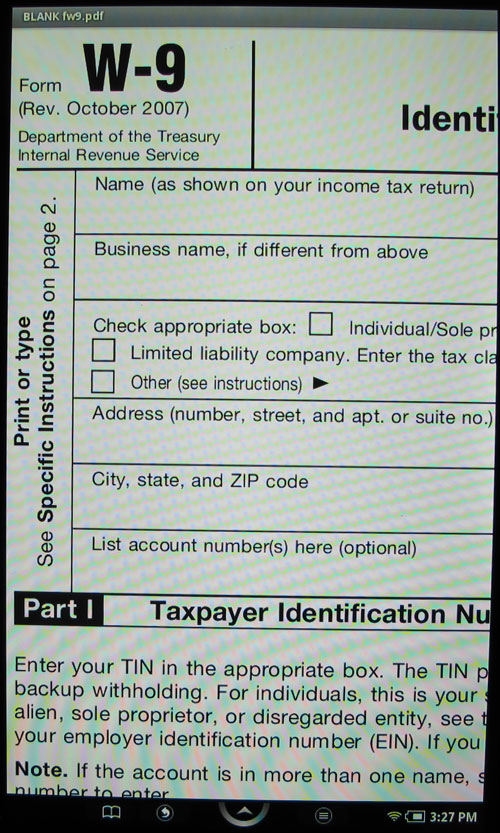
You can use pinch and spread gestures on the touch screen to zoom in and out. I found that zooming in and out on the display using your fingers is a bit clunky feeling. It's not nearly as smooth as on an iPad. When you use the zoom gesture on a specific area of the screen, it never zooms in on the exact area where your fingertips are. Instead, it will zoom on a spot somewhat near where your fingers were. You then have to move the page around to position it where you want on the display. For me, this is really the most annoying thing about the NOOKcolor and becomes even more cumbersome when you are reading magazines and newspapers.
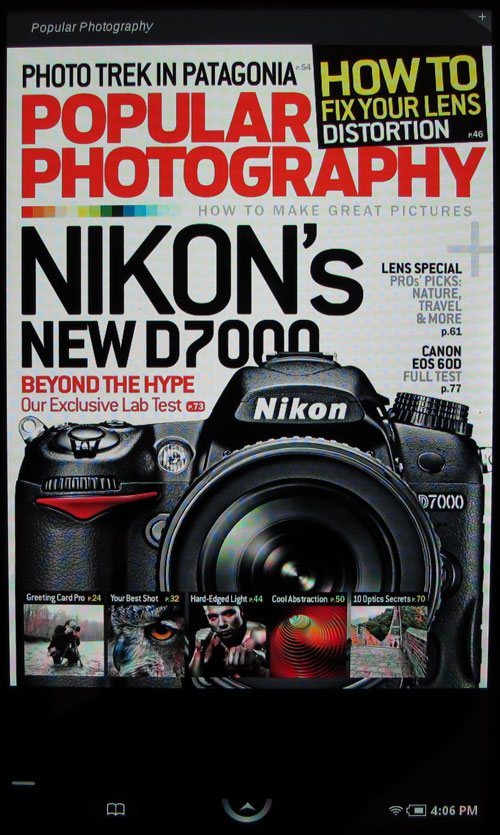
When you first purchase the NOOKcolor, you are offered a 14 day free trial of any magazine and newspaper of your choice. I thought the Nook would be a great device for reading magazines. After all, it has a color display and can hold more magazines than you could possibly carry around with you. The only problem is the small screen size.

Reading a full page on the Nook might be fine for those of you that have younger eyes than I do… but for me, it's a bit uncomfortable. They do offer a couple ways to zoom in for easier reading though. You can use the touch gestures, which I mentioned can be frustrating. You can also double tap the text to automatically zoom in, but that's nearly as bad as using your fingers because it tends to cut the text off on the edges of the screen.
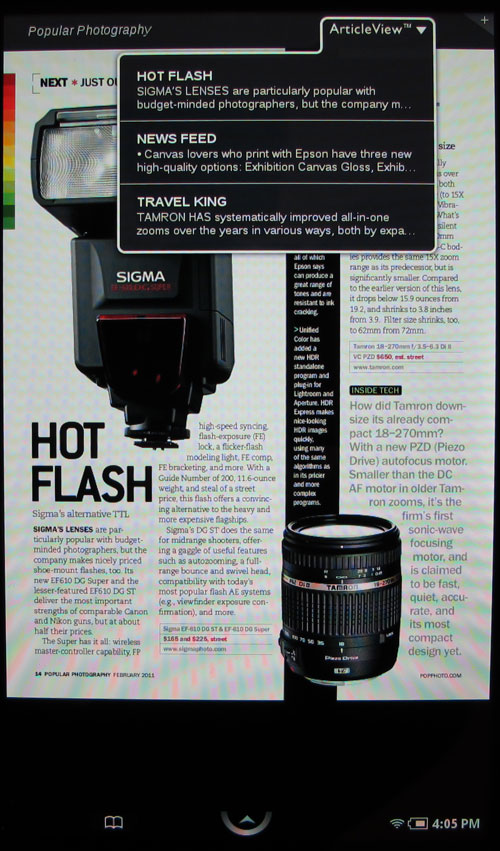
The best method is to click the ArticleView button at the top of the display. It will show a drop down box of the articles on the page.
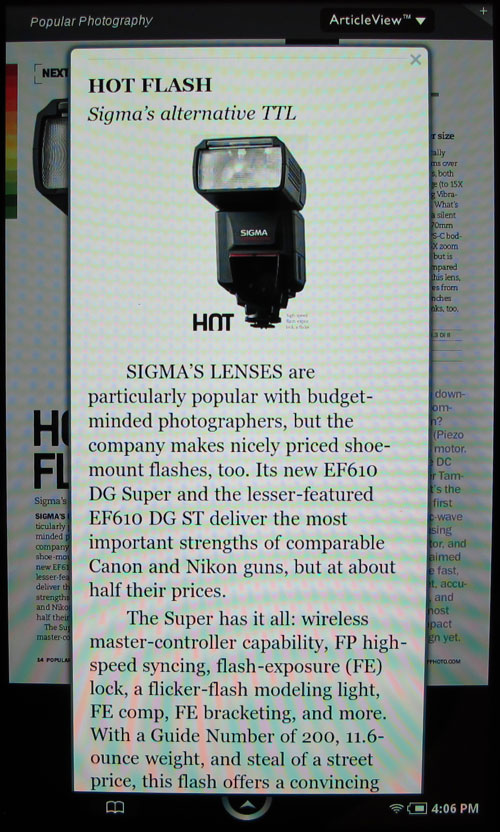
Choosing one of the articles will then display the article in a larger font, which can be scrolled up and down.
It's interesting to note that if you hold the Nook in landscape orientation, it doesn't display half a page of the magazine. Instead, it shows two pages side by side which is completely impossible to read. Argh.
If I haven't turned you off on magazines yet, you will be happy to know that there are currently 92 different magazines that you can purchase for the Nook. You can either buy individual issues, or commit to a monthly subscription for a reduced price.
Not a fan of magazines? There are 24 newspapers that you can buy and / or subscribe to as well. Unlike magazines, newspapers are formatted like a book, with plain text and a few images here and there. At least that is how the one newspaper I tried (USA Today) was like. It's easier to read, but not nearly as 'newspapery' feeling. I don't much like it, but that's just me.
Ok, on to other features…
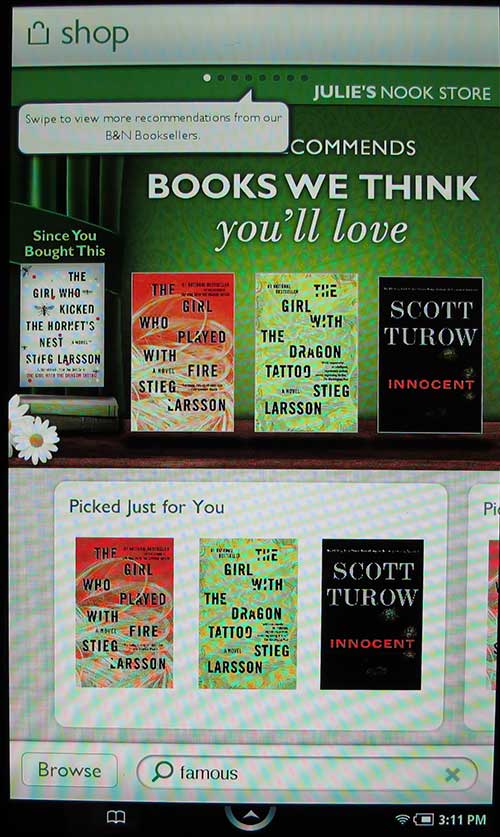
Just like with the previous version of the Nook, you can browse and buy books from the Barnes & Nobel online shop. You can read a description, get a free sample or actually buy the book, which will quickly download via WiFi to the reader.
One thing to consider… The NOOKcolor does NOT have 3G connectivity like original nook and the Kindle. You'll need a WiFi connection to browse and purchase new content.
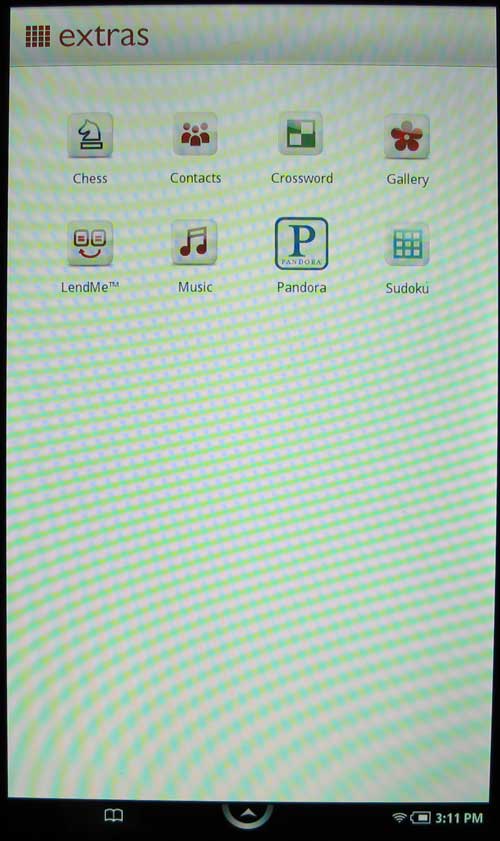
When you're bored with reading books, magazines and newpapers, you can play Chess, Crosswords or Sudoku. You can also listen to music through the music player and Pandora applications. There's also a contacts app that will allow you to sync your contacts from your Google account. You can then use those contacts to Lend your books using the LendMe feature. Last but not least, there's a picture viewing / slideshow app.
Of course, you probably already know that the NOOKcolor is powered by the Android operating system. You would think it would make a great little Android tablet, but B&N doesn't allow access to the Android App Market. If you're willing to root the device, you can gain access. That's not part of this review though… 
With the built in web browser, it is possible to use this device as a pseudo tablet.
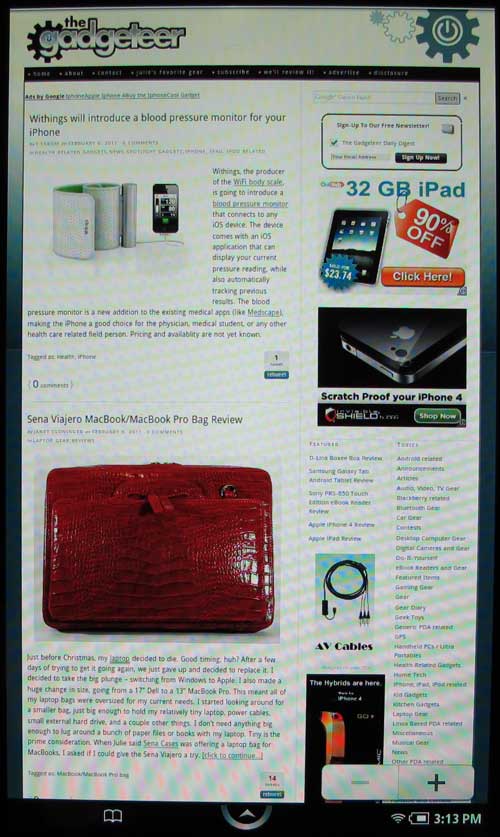
Surfing on the Nook feels similar to reading magazines on the Nook – the screen is cramped and using pinch gestures to zoom, feels jerky and clunky as it blanks out and then repaints the page.
It's a better experience in landscape mode though.
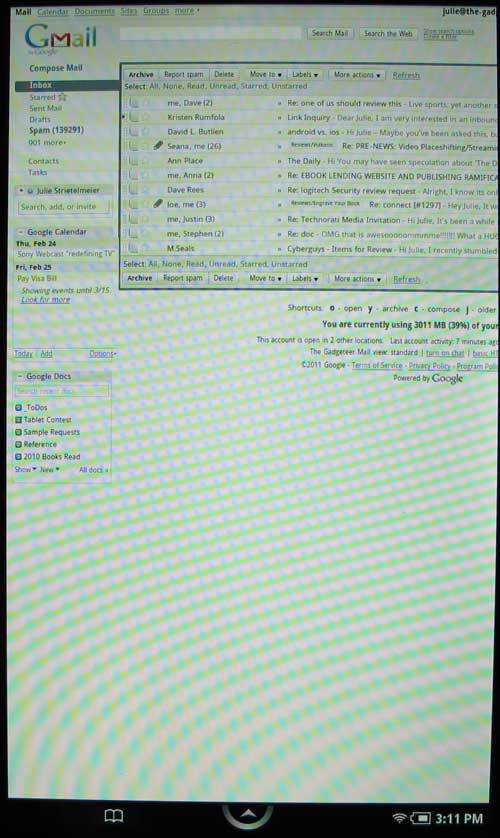
Although it is possible to surf your favorite sites on the Nook, it isn't something I would want to do for any length of time. It's a very different feel than doing the same thing on the iPad. For me, it's all about the screen size and being able to easily read the information on the screen. As a web surfing tablet, I give the NOOKcolor a grade of C.
Bottom Line
I have mixed feelings about the NOOKcolor. As an eBook Reader, it does a good job. It has good battery life and having a color screen is a big benefit for some people with eye problems like myself. That said, I found the glossy display to bother my eyes more than I thought it would. I didn't notice this glare problem all the time, but during those times when I was in a bright room with sunlight coming through the windows, it ended up being annoying.
As a magazine reader, I found the Nook to be lacking ease of use. I know I've been spoiled with reading magazines using the Zinio app on the iPad, so I'll freely admit that I'm biased in that regard. The same goes for reading newspapers on the Nook. While it's easier to read them than magazines, the experience isn't very slick.
I think it's great that Barnes & Noble was the first big brand to release a dedicated color eBook reader. It's a step in the right direction, but for me, I will stick with my Droid X as my eBook reader and my iPad as a magazine and newspaper reader.
Filed in categories: Featured Items, Reviews, eBook Readers and Gear
Barnes & Noble NOOKcolor eBook Reader Review originally appeared on The Gadgeteer on February 8, 2011 at 11:00 am.
Things you can do from here:
- Subscribe to The Gadgeteer using Google Reader
- Get started using Google Reader to easily keep up with all your favorite sites
